Multipurpose theme documentation
Multipurpose Fashion Theme
Sections Blocks Overview
Multipurpose Fashion Theme
Theme: Multipurpose Fashion Theme
Help Center > Sections & Blocks > Overview
Overview
Sections and blocks are the building blocks of your Shopify store. They define the layout and content of your homepage, product pages, collection pages, and other templates. This theme provides many addable sections (excluding Header and Footer, which have their own documentation). Each section may contain blocks that you can add, remove, and reorder. This guide explains how sections and blocks work for merchants, prospective merchants, and theme reviewers.
What Are Sections?
Sections are modular units of content that you add to page templates. Examples:
- Hero - Full-width banners with images or video
- Featured collection - Grid of products from a collection
- Rich text - Headings, paragraphs, lists
- Image with text - Two-column layout with media and content
- Promotional grid - Flexible grid of promotional cards
Sections appear in the Theme Customizer when you click Add section. They can be reordered by dragging.
What Are Blocks?
Blocks are smaller units inside a section. Not all sections have blocks; some are configured only via section settings.
| Section type | Has blocks? | Example blocks |
|---|---|---|
| Featured product | Yes | Title, Price, Add to cart, Description |
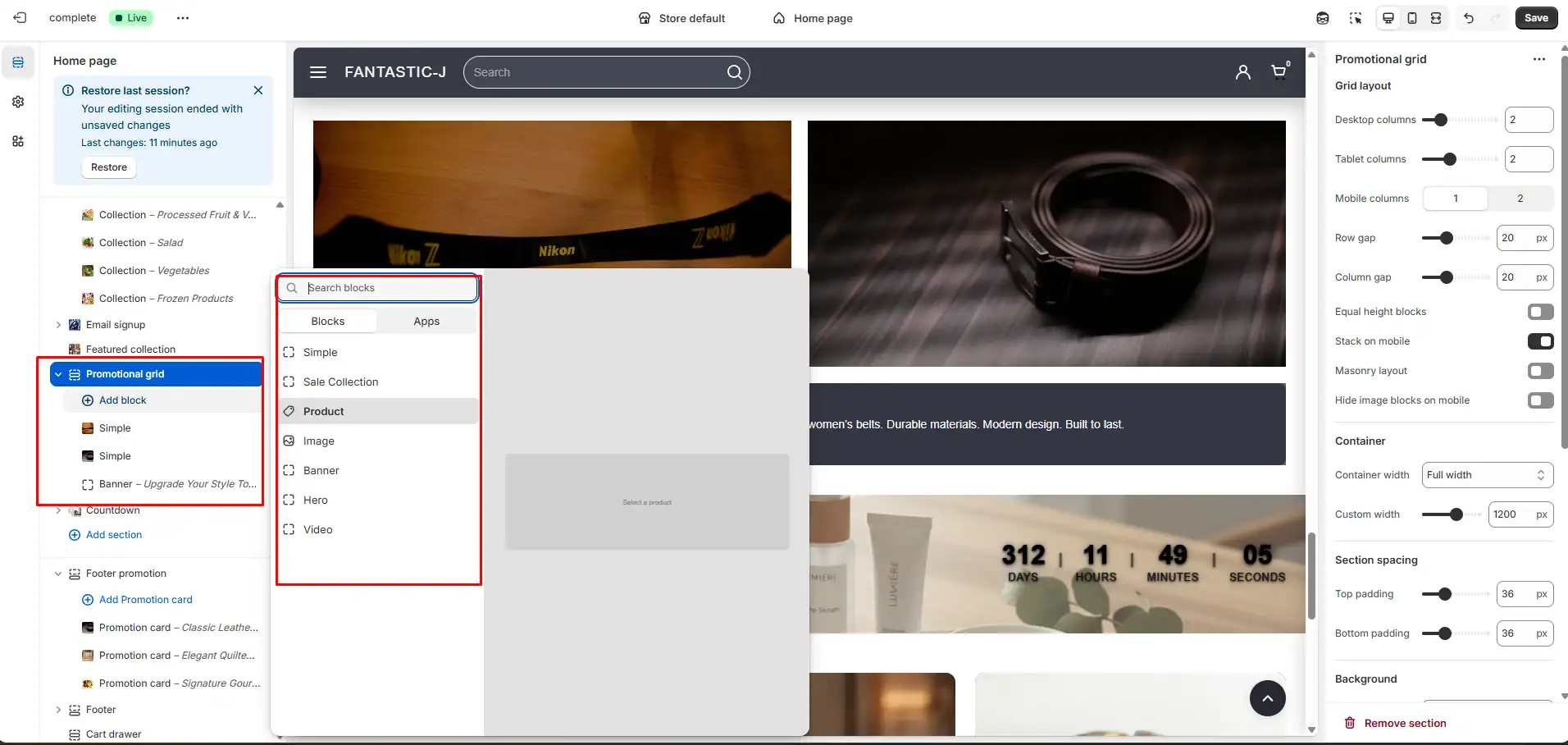
| Promotional grid | Yes | Simple, Collection Spotlight, Product, Image, Banner, Hero, Video |
| FAQs | Yes | Question |
| Featured collection | No | - |
| Rich text Pro | No | - |
You add blocks by clicking Add block within a section. Block order affects layout.
Where Sections Appear
| Template | Sections available |
|---|---|
| Homepage | All addable sections (hero, featured collection, etc.) |
| Product | Product-specific sections + most general sections |
| Collection | Collection-specific sections + general sections |
| Page | General sections (rich text, image with text, etc.) |
| Blog / Article | Blog-specific + general sections |
Some sections are template-restricted - they appear only on product or collection pages (e.g. Related products, More from collection). The Theme Customizer shows only sections valid for the current template.
Adding and Arranging Sections
- Go to Online Store > Themes > Customize.
- Select a template from the dropdown (e.g. Home, Default product).
- Click Add section.
- Choose a section from the list (e.g. Featured collection, Rich text Pro).
- Configure section settings and add blocks if the section supports them.
- Drag sections to reorder.
- Click Remove on a section to delete it.
- Click Save when done.
📷 Image placeholder: Add a screenshot of the Add section menu with available sections listed.

Section Categories (This Theme)
Sections in this theme (excluding Header and Footer) are grouped as follows:
| Category | Sections | Documentation |
|---|---|---|
| Hero & Banner | Hero optional slides, Video hero, Image optional slides, Split optional slides, Large image with text box, Scrolling text, Countdown | Hero & Banner Sections |
| Image & Media | Image hotspots, Image comparison, Gallery, Media with text Pro, Advanced image with text, Video Pro | Image & Media Sections |
| Text & Content | Rich text Pro, Text columns with icons, Text columns images Pro, Custom content | Text & Content Sections |
| Product | Featured product, Product grid | Product Sections |
| Collection | Featured collection, Category list | Collection Sections |
| Product Recommendations | Related products, More from vendor, More from collection, Recently viewed | Product Recommendation Sections |
| Promotional Grid | Promotional grid - Simple, Collection Spotlight, Product, Image, Banner, Hero, Video (flexible block-based layouts) | Promotional Grid |
| Forms & Newsletter | Email signup, Contact us | Forms & Newsletter Sections |
| Info & Trust | Testimonials, FAQs, Advanced accordion, Logo list | Info & Trust Sections |
| Utility | Header promo, Header divider, Map | Utility Sections |
Common Section Settings
Many sections share similar settings:
| Setting type | Description |
|---|---|
| Heading | Section title (optional) |
| Heading size | Small, Medium, Large, Extra large |
| Heading position | Left, Center |
| Padding top / bottom | Vertical spacing |
| Color scheme | Use a theme color scheme for background/text |
| Custom CSS | Scoped CSS for advanced styling |
| Full width | Stretch to viewport edges |
For merchants
- Start with a clear homepage structure: hero → featured collection → value props → newsletter.
- Use the Theme Customizer live preview to see changes instantly.
- Reorder sections to emphasize key content; keep critical info above the fold.
- Test on mobile - some sections have mobile-specific options.
Common mistakes
| Mistake | Fix |
|---|---|
| Section not showing | Ensure you're on the correct template; some sections are template-restricted |
| Blocks in wrong order | Drag blocks within the section to reorder |
| Too many sections | Limit homepage sections for performance and clarity |
| Duplicate sections | Remove unused sections to avoid clutter |
FAQs
Sections with blocks (e.g. Promotional grid, FAQs) let you add multiple content units. Section-only sections (e.g. Featured collection, Rich text Pro) are configured entirely via section settings. Use blocks when you need repeatable, reorderable content.
Yes. Add the section to each template (Home, Product, Collection, etc.) via the Theme Customizer. Some sections are template-restricted and only appear on certain pages.
FAQs - Use for simple Q&A (question + answer). Best for shipping, returns, sizing, contact. Advanced Accordion - Use for rich content (HTML, links, formatted text). Best for product details, size guides, policy summaries.
Some sections are template-restricted. Ensure you're viewing the correct template in the Customizer. Product-specific sections (e.g. Related products) only appear on product templates.