Multipurpose theme documentation
Multipurpose Fashion Theme
Countdown
Multipurpose Fashion Theme
Theme: Multipurpose Fashion Theme
Help Center > Sections & Blocks > Hero & Banner Sections > Countdown
Overview
The Countdown section displays a dynamic countdown timer with an optional background image, overlay, and call-to-action button. Use it for limited-time offers, sale deadlines, product launches, or event announcements.
Includes Content, Timer, and Button blocks. Important: Set the Countdown timezone correctly so the timer expires at the right time for your audience.
When the timer reaches zero, it stops at 00:00:00 and does not go negative.
Where to Add This Section
- Go to Online Store > Themes > Customize.
- Select Homepage or desired template.
- Click Add section.
- Choose Countdown.
- Save.
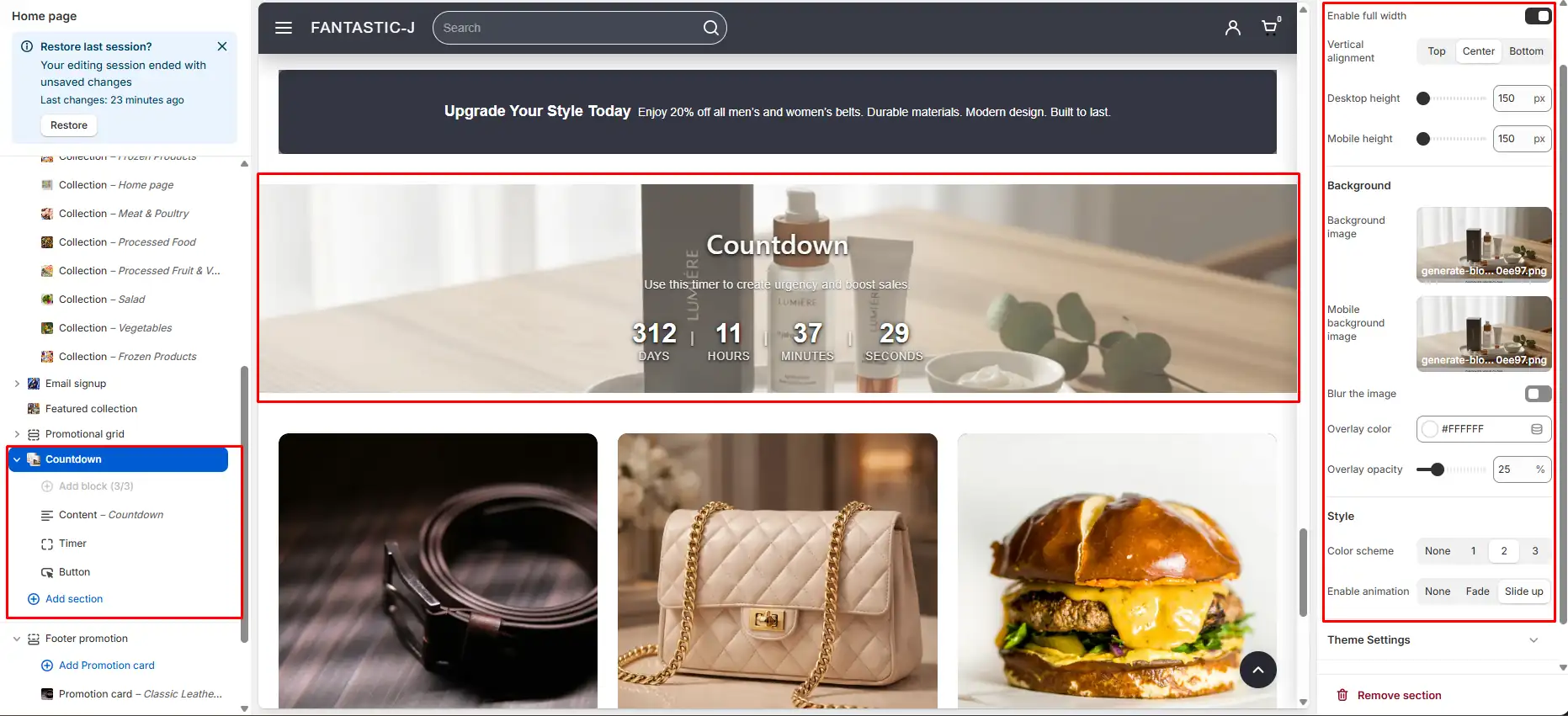
Quick Setup (3 Steps)
- Add Timer block Add the countdown display block.
- Set end date Configure countdown end date/time in block settings.
- Set timezone Set Countdown timezone in section settings.
Tip: Save and verify the countdown behavior on desktop and mobile before launching your promotion.
Section Settings
| Setting | Description |
|---|---|
| Layout | Layout style |
| Full width | Stretch to viewport |
| Vertical alignment | Content alignment |
| Desktop height | Section height |
| Mobile height | Mobile height |
| Background image | Full-section background |
| Mobile image | Mobile background |
| Enable blur | Background blur |
| Overlay color | Overlay color |
| Overlay opacity | Overlay strength |
| Color scheme | Theme scheme |
| Animation | Entry animation |
| Show divider | Divider above section with 20px top margin |
| Border radius | 10px when enabled, 0px when disabled |
| Countdown timezone | Timezone for end time (critical) |
Blocks
| Block | Description |
|---|---|
| Content | Heading, text (limit 1) |
| Timer | Countdown display set end date/time |
| Button | CTA button |
Content block
- Heading Main headline (e.g. "Sale ends in")
- Text Supporting copy
Timer block
- End date Day, month, year
- End time Hour, minute (in set timezone)
If the configured end date/time is in the past, the timer renders as expired immediately.
Button block
- Button label CTA text
- Button link URL (e.g. /collections/sale)
Step-by-Step Setup
Step 1: Add the section
Add Countdown to your template (typically homepage, sale page, or a campaign campaign page).
Step 2: Add blocks
- Click Add block > Content Enter Heading and Text (e.g. "Sale ends in").
- Click Add block > Timer Set End date and End time.
- Click Add block > Button Add Button label and Button link for CTA.
Step 3: Set timezone (critical)
- In section settings, set Countdown timezone (e.g. America/New_York, Europe/London).
- The timer calculates expiry based on this timezone. Wrong timezone means wrong expiry.
Technical note: The section interprets the configured end date/time in the selected timezone, then converts it to a UTC timestamp internally. This prevents client device timezone differences from changing the intended expiry time.
Step 4: Style and layout
- Upload Background image for full-section background.
- Set Overlay color and Overlay opacity for text readability.
- Adjust Desktop height and Mobile height.
- Enable Full width if desired.
- Enable Show divider for a divider above the section (adds 20px top margin).
- Toggle Border radius for rounded (10px) or square (0px) corners.
- Save.
Behavior details
- Updates every second.
- Stops at zero and does not display negative values.
- No page reload required.
- Responsive across desktop and mobile.
- Designed to work across modern browsers.
Use cases
- Flash sale "24 hours left"
- Product launch "Drops Friday at noon"
- Seasonal sale "End of season sale ends Sunday"
- Event "Live event in"
For merchants
- Set Countdown timezone to match your audience (e.g. America/New_York).
- Use a clear end date/time for promotions and verify it before going live.
- Test that timer counts down correctly on desktop and mobile.
- Add a CTA button linking directly to the sale collection or product.
- Use overlay settings to keep text readable on top of the background image.
Conversion tip: Countdown works best when paired with clear promotional messaging (limited-time offer, limited stock, or launch moment) and a strong CTA.
Timezone logic
- End date/time is interpreted using the merchant-selected Countdown timezone.
- Converted to UTC internally to avoid client device timezone mismatch.
Performance
- Lightweight script and no third-party libraries.
- Does not block page rendering.
Common mistakes
| Mistake | Fix |
|---|---|
| Wrong expiry time | Set Countdown timezone correctly |
| No Timer block | Add Timer block |
| End date in past | Set future date/time |
| Timer block empty | Configure End date and End time in Timer block |
| Timer not updating | Ensure JavaScript is enabled and the section is not blocked by a script restriction |
| Background unreadable | Increase Overlay opacity or choose a higher-contrast overlay color |
FAQs
Most commonly, the Countdown timezone is not set correctly. The timer calculates the expiry based on the timezone selected in the section settings. If the timezone does not match your target audience, the countdown may appear early or late.
No. The countdown uses the Countdown timezone selected by the merchant in section settings. The end date and time are interpreted in that timezone and converted internally to a universal timestamp. This ensures consistent expiry for all visitors.
When the timer expires, it stops at 00:00:00. It does not go negative and does not refresh the page automatically. You can manually update or remove the section after expiry if needed.
The section does not automatically hide itself after expiry. If you need conditional visibility based on time, custom development is required.
This usually means:
- The End date is in the past.
- The wrong timezone is selected.
- The End time was entered incorrectly.
Yes. You can add multiple Countdown sections to the same page. Each section operates independently with its own blocks and timezone settings.
Yes. The section is fully responsive and adapts to mobile and desktop screen sizes. You can control Mobile height separately in section settings.
No. The countdown uses a lightweight JavaScript timer and does not require external libraries. It updates once per second and does not block page rendering.
Yes. The Countdown section is fully compatible with Online Store 2.0 architecture and supports dynamic section rendering inside the theme editor.
The design follows your theme's Color scheme and layout settings. Advanced structural customization requires theme code modification.
Ensure:
- JavaScript is enabled in your browser.
- The end date and time are configured correctly.
- No script conflicts are blocking execution.
Yes. Add a Button block and set the Button link to a product, collection, or any URL. This is recommended for promotional campaigns.