Multipurpose theme documentation
Multipurpose Fashion Theme
Header Language Currency
Multipurpose Fashion Theme
Theme: Multipurpose Fashion Theme
Help Center > Header > Language & Currency
Overview
Language and currency selectors let international shoppers view your store in their preferred language and currency. This guide covers how to enable and configure language options, currency switching, and where these selectors appear in the header (or announcement bar). It is written for merchants, prospective merchants, and theme reviewers.
Language Selector
How it works
Shopify supports multiple languages for your store. When more than one language is published, the theme can show a language selector (dropdown or list) so customers can switch. The selector typically appears in the header or announcement bar.
Enabling multiple languages
- Go to Shopify Admin > Settings > Languages.
- Under Store languages, click Add language.
- Select the languages you want (e.g. French, Spanish, German).
- Add translations:
- Use Translate and adapt store to edit theme strings, product content, etc.
- Or use the Shopify Translation app for bulk translation.
- Publish the languages.
The language selector will appear only when two or more languages are published.
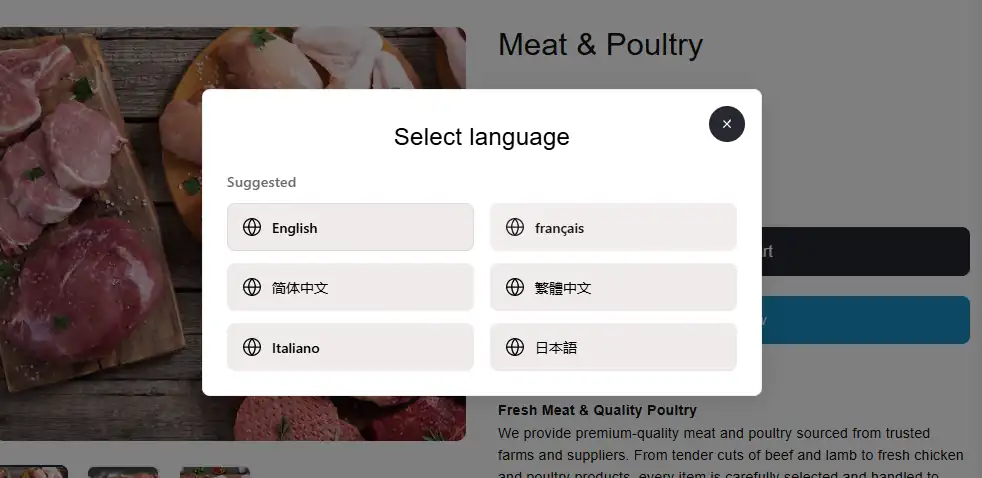
Enabling the Language Selector in the Theme
- Go to Online Store > Themes > Customize.
- Open the Header section or Announcement bar section (depending on theme).
- Find Show language selector or Enable language selector.
- Turn it On.
- Save.
The selector location depends on the theme:
- Header: Often next to currency or account icon.
- Announcement bar: Sometimes grouped with social icons or country selector.
📷 Image placeholder: Add a screenshot of the header with the language selector dropdown visible.

Translating Your Content
What can be translated
| Content | Where to translate |
|---|---|
| Theme UI (buttons, labels, etc.) | Translate and adapt store > Theme |
| Products (title, description) | Products > Edit product > Translations |
| Collections | Collections > Edit > Translations |
| Pages | Online Store > Pages > Edit > Translations |
| Navigation menus | Navigation > Edit menu > Translations |
Translation apps
- Shopify Translation - Built-in; good for basic translation.
- Langify, Weglot, Transcy - Third-party apps with auto-translation and more control.
Currency Selector
How it works
Shopify Markets and multi-currency let customers pay in their preferred currency. When multiple currencies are available, the theme can show a currency selector. The theme may use Shopify's native currency conversion or an app.
Enabling multiple currencies
- Go to Shopify Admin > Settings > Markets (or Payments > Currency in older setups).
- Add markets and configure which currencies each market supports.
- Enable Show customers prices in their local currency (or equivalent).
- Currencies are converted automatically based on Shopify's rates (or your app).
Enabling the currency selector in the theme
- Go to Online Store > Themes > Customize.
- Open the Header or Footer section (theme-dependent).
- Find Show currency selector or Enable currency selector.
- Turn it On.
- Save.
The currency selector typically appears in the header next to the language selector, or in the footer.
📷 Image placeholder: Add a screenshot of the header with the currency selector visible.
Advanced Multi-Currency with Apps
For more control (rounding rules, custom rates, geo-detection), consider:
| App | Features |
|---|---|
| Bold Multi-Currency | Custom rates, rounding, multiple currencies |
| Auto Multi-Currency | Auto conversion, geo-based switching |
| Coin | Simplified multi-currency |
These apps may replace or enhance the theme's currency selector.
For merchants
- Add languages and currencies that match your main audiences.
- Test the selectors on desktop and mobile to ensure they're easy to find and use.
- Keep translations updated when you add new products or copy.
Common mistakes
| Mistake | Fix |
|---|---|
| Selector not showing | Publish 2+ languages / enable multiple currencies in Settings |
| Wrong languages listed | Check Settings > Languages and published status |
| Currency not converting | Verify Markets and currency settings; check app if used |
| Selector in wrong place | Check Header, Footer, and Announcement bar section settings |
| Translations missing | Use Translate and adapt store or a translation app |