Multipurpose theme documentation
Multipurpose Fashion Theme
Header Social Icons
Multipurpose Fashion Theme
Theme: Multipurpose Fashion Theme
Help Center > Header > Social Icons
Overview
Social media icons in the header link to your store's social profiles (Facebook, Instagram, Twitter/X, TikTok, Pinterest, YouTube, etc.). They strengthen brand presence and help shoppers connect with you. This guide covers how to add, configure, and style social icons in the header and related sections. It is written for merchants, prospective merchants, and theme reviewers.
Where Social Icons Can Appear
Depending on the theme, social icons may appear in:
| Location | Typical use |
|---|---|
| Header | Next to search, cart, or account icon |
| Announcement bar | Top bar above the header |
| Footer | In a "Follow us" or social column |
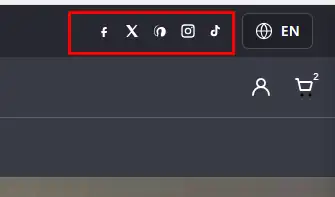
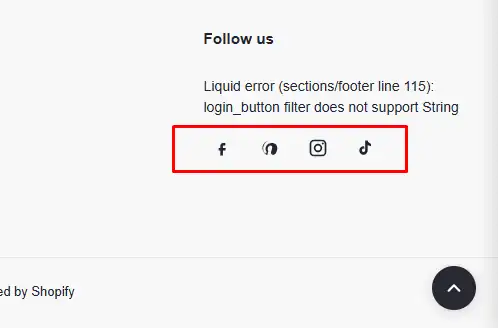
Adding Social Links in Theme Settings
Most themes pull social URLs from Theme settings, not from the Header section.
Step 1: Open Theme settings
- Go to Online Store > Themes > Customize.
- Click Theme settings (or the gear icon) in the left sidebar.
- Find Social media (or Social links).
Step 2: Enter your social URLs
Enter the full URL for each platform you use:
| Platform | Example URL |
|---|---|
| https://www.facebook.com/yourpage | |
| https://www.instagram.com/yourstore | |
| Twitter / X | https://twitter.com/yourstore |
| TikTok | https://www.tiktok.com/@yourstore |
| https://www.pinterest.com/yourstore | |
| YouTube | https://www.youtube.com/yourchannel |
| https://www.linkedin.com/company/yourstore |
Leave fields blank for platforms you don't use; those icons won't show.
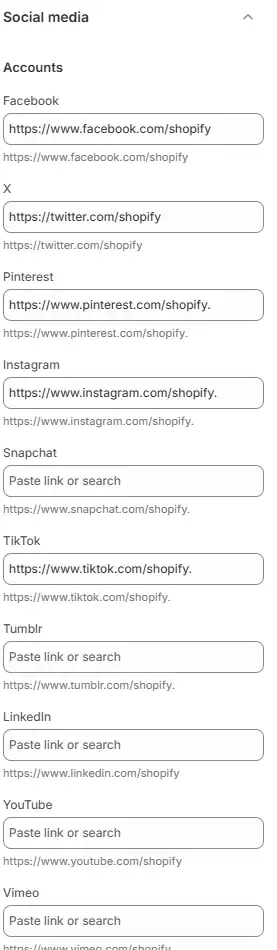
Enabling Social Icons in the Header
- In Theme Customizer, open the Header section.
- Look for:
- A Social icons block to add
- Or a Show social icons toggle in section settings
- If using a block: Add the block and position it (drag to reorder).
- If using a toggle: Turn Show social icons On.
- Save.
Social icons typically use the URLs from Theme settings > Social media.
Alternative: Custom Links in Navigation
If the theme doesn't offer a social block, you can add social links as custom menu items:
- Go to Online Store > Navigation.
- Edit the menu used in the header (or create a separate one for social).
- Add menu items with:
- Name: Platform name (e.g. "Instagram")
- Link: Full URL (e.g. https://instagram.com/yourstore)
- Assign the menu to a header area if the theme supports multiple menus.
- Optionally use an icon font or image for each link (theme-dependent).
Styling Social Icons
Size and spacing
- Icon size: May be in Header block settings or Theme settings > Social media.
- Spacing: Gap between icons is often controlled by theme or custom CSS.
Colors
- Default: Icons may use the theme's link or accent color.
- Hover: Often a different color or slight scale on hover.
- Custom: Some themes let you set icon colors in Theme settings.
Icon style
- Themes usually use SVG or icon fonts (e.g. Font Awesome).
- Icons should be recognizable (Facebook "f", Instagram camera, etc.).
- Ensure contrast meets accessibility guidelines (WCAG).
Which Platforms to Include
| Platform | When to include |
|---|---|
| Visual products, lifestyle, UGC | |
| Community, events, support | |
| TikTok | Short-form video, younger audience |
| Inspiration, visual discovery | |
| YouTube | Tutorials, product demos |
| Twitter/X | Updates, support, news |
Include only platforms you actively maintain. Broken or outdated links hurt trust.
Mobile Considerations
- Social icons in the header should remain visible and tappable on mobile.
- Ensure touch targets are at least ~44px.
- Icons may move into the mobile menu drawer depending on the theme.
For merchants
- Add links to all active social profiles.
- Use official brand colors where possible for consistency.
- Update links if you change handles or create new accounts.
Common mistakes
| Mistake | Fix |
|---|---|
| Icons not showing | Add URLs in Theme settings; enable in Header section |
| Wrong URL | Use full URL (https://...) and verify the page exists |
| Icons too small on mobile | Adjust icon size; ensure touch targets are adequate |
| Outdated links | Review social links when changing handles |
| Missing platform | Add URL in Theme settings if the theme supports it |