Multipurpose theme documentation
Multipurpose Fashion Theme
Header Announcement Bar
Multipurpose Fashion Theme
Theme: Multipurpose Fashion Theme
Help Center > Header > Announcement Bar
Overview
The announcement bar sits at the very top of your store, above the header. Use it to highlight promotions, free shipping thresholds, new arrivals, store updates, or time-sensitive offers. This guide covers how to add, configure, and customize the announcement bar. It is written for merchants, theme store visitors, and theme reviewers. For full section and block settings, see the dedicated Announcement Bar document.
What the Announcement Bar Does
| Feature | Description |
|---|---|
| Promotions | Highlight sales, discounts, or special offers |
| Free shipping | Announce minimum order for free shipping |
| New arrivals | Draw attention to new products |
| Store updates | Share news, events, or policy changes |
| Countdown timers | Create urgency with deadline countdowns |
| Social / selectors | Optional social icons, language, or country selector |

Adding the Announcement Bar Section
Step 1: Access the theme layout
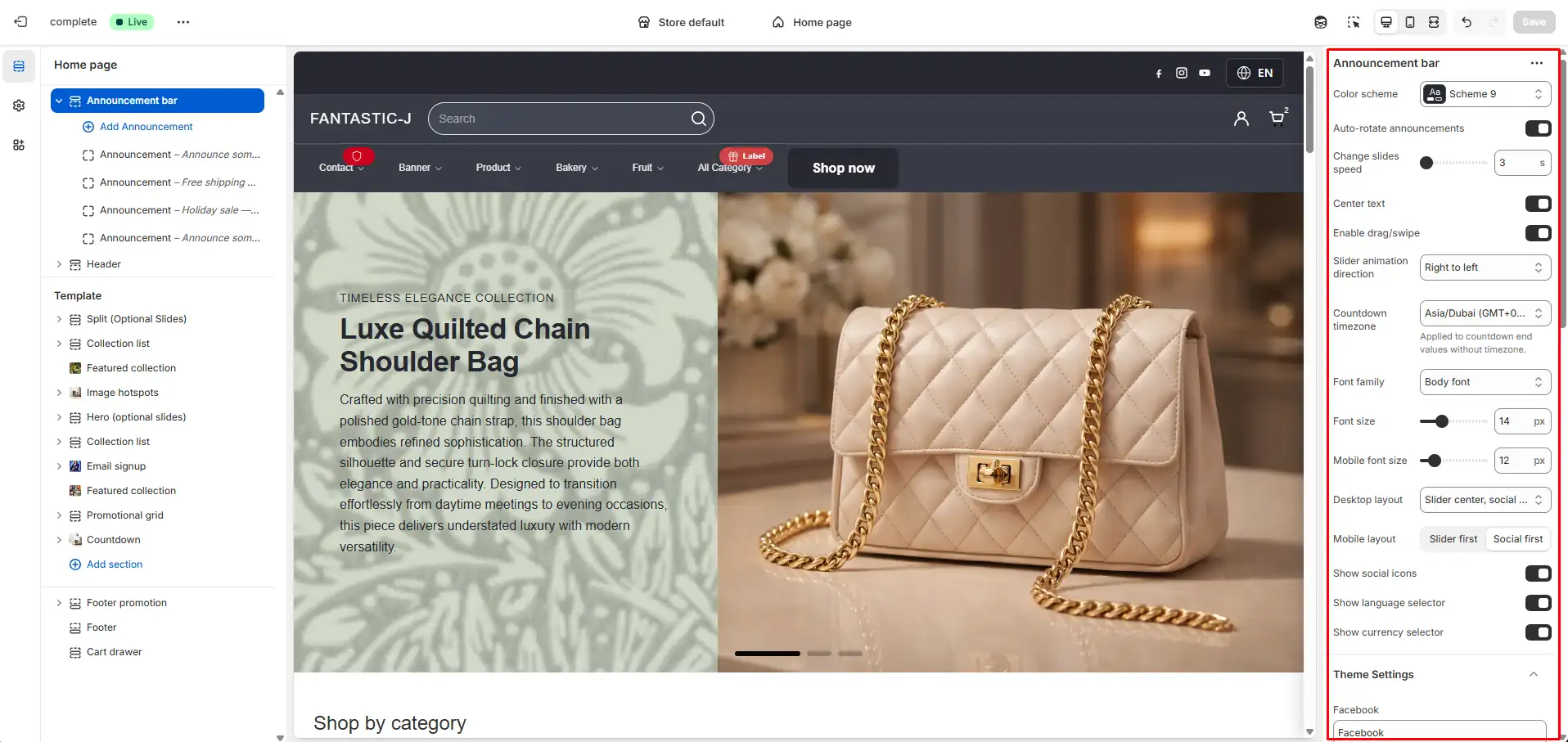
- Go to Online Store > Themes > Customize.
- At the top of the left sidebar, select the Theme or Default template (or the template that defines the main layout).
- The layout shows global sections: often Announcement bar at the top, then Header, then main content.
Step 2: Add the section (if missing)
- Click Add section.
- Find Announcement bar (or equivalent) in the list.
- Add it and drag it to the top so it appears above the header.
- Save.
Step 3: Confirm placement
The announcement bar should appear above the header on all pages that use this template. Check the live preview to confirm.
Adding Announcement Content
Creating announcement blocks
- In the Announcement bar section, click Add block (or the section already has blocks).
- Add an Announcement (or Slide) block.
-
Configure:
- Text: Your message (e.g. "Free shipping on orders over $50")
- Link: Optional URL (e.g. /collections/sale)
- Link text: Optional (e.g. "Shop now")
- Add more blocks for multiple rotating announcements.
- Save.
Multiple announcements (slider)
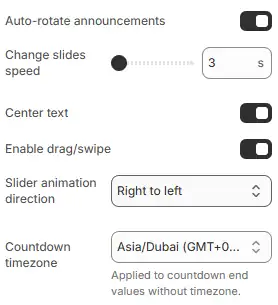
- With multiple blocks, the theme can auto-rotate through them.
- Set Change slides speed (e.g. 5 seconds) in section settings.
- Set Slider animation direction (left to right or right to left).
Countdown Timer
Some themes support countdown blocks for limited-time offers.
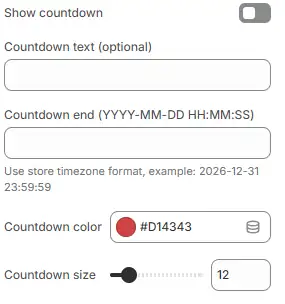
- Add an Announcement block (or Countdown block if available).
- Enable Show countdown.
- Set Countdown end (e.g. 2026-12-31 23:59:59).
- Set Countdown timezone in section settings—critical for correct expiry.
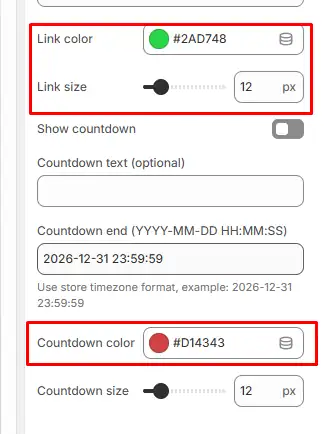
- Optionally set Countdown text (e.g. "Ends in") and Countdown color.
Important: Without the correct timezone, the countdown may end at the wrong time for your audience.
Styling the Announcement Bar
Section settings
| Setting | Description |
|---|---|
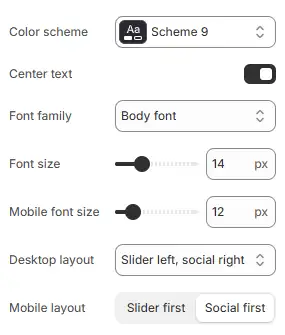
| Color scheme | Background and text colors |
| Font family | Body or heading |
| Font size (desktop) | Desktop text size |
| Font size (mobile) | Mobile text size |
| Center text | Center announcement text |
| Desktop layout | Slider + social layout |
| Mobile layout | Slider first (slider above social) or Social first (social above slider; social icons visible on mobile) |
Block-level styling
- Link color — Color of the "Shop now" or similar link (uses theme CSS variables when not customized)
- Link font size — Size of the link text
- Countdown color — Countdown timer color
The modal (language/country selector) uses theme variables
(--color-background, --color-border,
--color-text) for consistent styling.
Social Icons and Selectors
The announcement bar can include:
- Show social — Display social icons (uses Theme settings > Social media)
- Enable language selector — When multiple languages exist
- Enable country selector — When using Markets
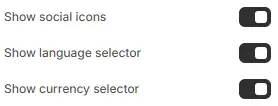
These appear alongside or alternating with the announcement text, depending on layout.
Mobile Behavior
- Enable drag/swipe — Lets users swipe between announcements on mobile (disabled when user prefers reduced motion).
- Mobile layout — Slider first shows the slider above social icons; Social first shows social icons above the slider. Social icons are visible on mobile when Social first is selected.
- Keep announcement text short on mobile for better readability.
Accessibility & Theme Store Compliance
The announcement bar is built for accessibility and Shopify Theme Store requirements:
-
Region & labels — Uses
role="region"and translatablearia-labelfor screen readers. - Keyboard navigation — Arrow Left and Arrow Right move between slides when the slider is focused.
-
Social icon labels — Each social link has a translated
aria-label(e.g. Facebook, Instagram). -
Reduced motion — When the user has
prefers-reduced-motion: reduce, auto-rotate and slider animations are disabled. - Section lifecycle — Properly cleans up intervals and event listeners when the section is unloaded in the Theme Editor.
-
Translations — Labels use keys under
sections.announcement_barin locale files.
For merchants
- Use the announcement bar for one clear message; avoid crowding with too many rotating slides.
- Include a link when relevant (e.g. to the sale collection).
- Set the countdown timezone correctly for promotions.
Common mistakes
| Mistake | Fix |
|---|---|
| Countdown wrong time | Set Countdown timezone in section settings |
| Empty announcements | Add at least one block with text |
| Too many slides | Use 2–4 announcements max for readability |
| Bar hidden | Ensure section is added and placed at top of layout |
| Link not working | Use valid URL; test on live store |
FAQs
The Announcement Bar is a configurable header section used to display promotional messages, updates, or time-sensitive offers. It supports:
- Multiple announcement slides
- Auto-rotation
- Countdown timer
- Social media icons
- Language selector
- Country (currency) selector
- Custom color schemes
- Responsive layout options
You can add up to 12 announcement blocks. Each block represents one slide. Only blocks with a non-empty Text field will be displayed.
Yes. Enable Auto-rotate announcements in section settings and configure the slide speed (3 to 10 seconds).
If disabled, users can manually navigate using drag or swipe.
Yes. When Enable drag/swipe is enabled:
- Mobile users can swipe between slides
- Desktop users can drag with the mouse
Each announcement block can include a countdown timer.
- Enable Show countdown
-
Enter the end date in format:
YYYY-MM-DD HH:MM:SS - Select the desired timezone in section settings
Example: 2026-12-31 23:59:59
When the timer reaches zero:
- The countdown stops
- The announcement remains visible
Automatic removal requires custom modification.
Desktop layout options:
- Slider left, social right
- Social left, slider right
- Slider center, social right
Mobile layout options:
- Slider first
- Social first
Yes. Enable Center text in the section settings.
Yes. You can configure:
- Font family (Body or Heading)
- Desktop font size
- Mobile font size
- Link size per announcement
- Countdown size per announcement
Social icons appear only if:
- Show social icons is enabled
- At least one social link is configured in Shopify Admin → Settings → Social media
Supported platforms include Facebook, Twitter, Instagram, Pinterest, TikTok, LinkedIn, YouTube, Tumblr, and Vimeo.
Yes. Enable Show language selector. It will appear only if your store has multiple published languages.
Yes. Enable Show currency selector. It will appear only if your store has multiple countries enabled in Shopify Markets.
Yes. You can select a color scheme from theme settings. The background and text colors automatically adjust based on the selected scheme.
The section will not render unless:
- At least one announcement block contains text, or
- Social icons are enabled and at least one social link is configured
Yes. The section is fully responsive and includes separate layout and font size controls for mobile devices.
No significant impact. Scripts and styles are loaded conditionally only when required (slider or localization enabled).
Yes. Add a single announcement block, disable auto-rotate and social icons, and it will function as a static promotional banner.